

Confirm Your Schedule
Check the official date, time and session information supplied in your onboarding or class message.
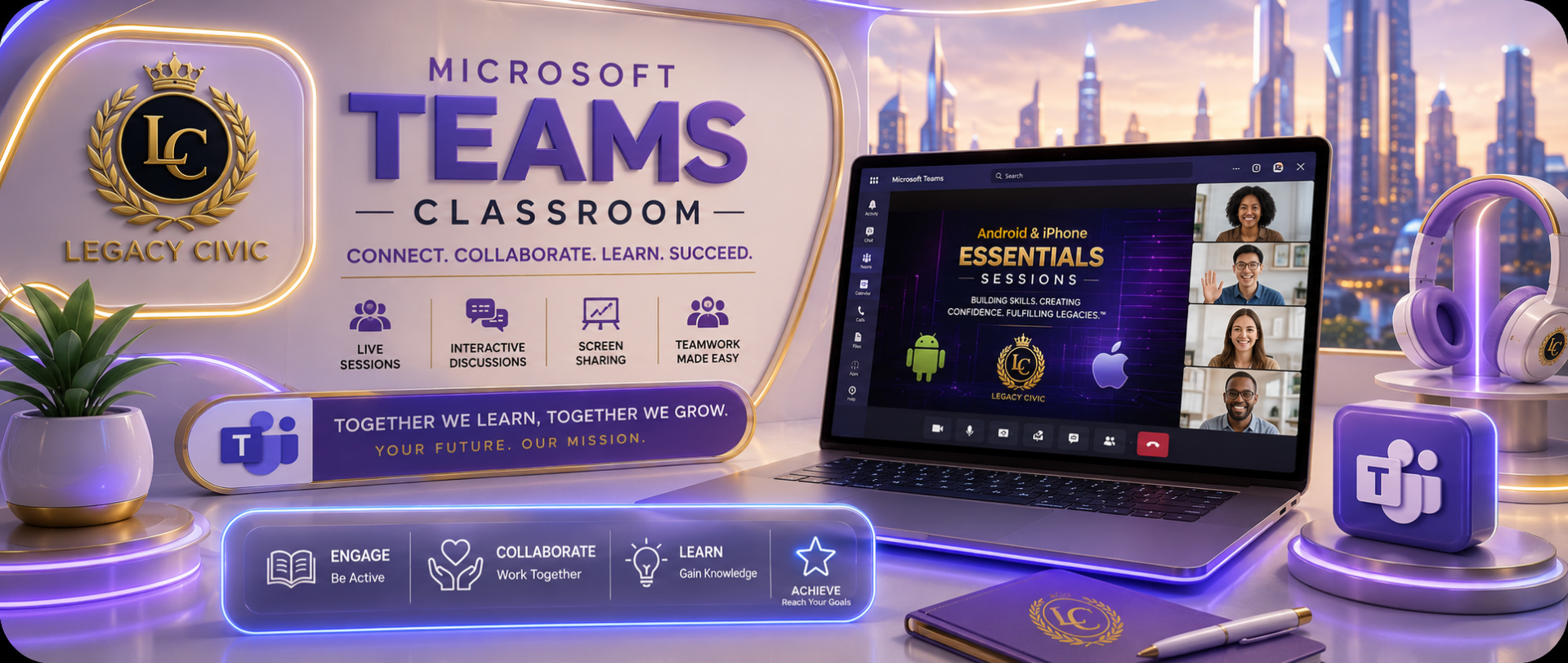
Registered Participants • Virtual Classroom Access
Use this page to prepare for and enter your assigned Legacy Civic™ virtual session. Only registered participants with current session information should enter the classroom.
Check the official date, time and session information supplied in your onboarding or class message.
Charge your device, connect to stable internet and test your microphone, speaker, camera and browser.
Enter with the participant name and account information approved for your Legacy Civic™ enrollment.
Open Teams before the scheduled start so you have time to resolve ordinary connection issues.
Follow the attendance, camera and identity-verification requirements provided for your session.
Be prepared to listen, practice, answer questions and complete assigned activities.
Maintain a professional, supportive and distraction-free environment for instructors and participants.
Do not record, photograph, distribute or share classroom access without written authorization.
Confirm your internet connection, copy the approved meeting link into an updated browser and try Continue on this browser.
Check browser permissions, device volume, microphone selection and camera settings.
Confirm the correct session time and participant account, then contact support with the exact message displayed.
You may be able to choose Continue on this browser when supported, unless your session instructions require the application.
No. Classroom information is intended only for approved registered participants and should not be shared.
Email Support@LegacyMobileSessions.com with your name, session, device type and the exact error message.